
For those who don't work with the API but rather with Anthropic's monthly plans, you know that Claude Code has two limits: the 5-hour rolling window and the token limit (which every agent has, API or not). The 5-hour limit is a clever way to make you "use the platform responsibly," which actually means "we really hope this inconveniences you enough so you don't burn through the weekly limit."
So you open the terminal, start a job, monitor the tokens, and when the 5-hour limit hits, you leave it sitting there until you eventually remember, type continue, and the work resumes until the limit hits again.
It would be great to just leave my monthly Claude plan running non-stop, autonomously, until all the work tasks are completed.
Well, you can, and all you need is a terminal and some willpower to make it happen. I'll explain how I handle this workflow when I need "fast" sprints of one or two days without stopping. I'll explain it my way; you can adapt it to your own needs—it's actually very simple. The stack I use is:
- Linux Terminal (directly on Linux or Windows WSL2, with Claude Code installed)
- A
.shfile in your project root - AIPIM, my local MCP to manage agent tasks
- Any monthly/annual Claude plan, obviously!
Understanding the Methodology
Before getting our hands dirty, it's important to understand the methodology behind this. There are two pain points we need to address:
- Avoiding the token limit: Using tokens right up to the limit causes two problems: first, it gets more expensive (in terms of context weight), and second, the chance of hallucinations increases considerably. Ideally, you don't want to
/cleartoo early, as the agent itself will spend ~30k tokens just organizing the context, but not too late either, to avoid the issues I mentioned. - Resuming automatically whenever the goddamn 5-hour limit hits: The tasks are ready, the
worktreeis created—I just want to have a peaceful night, sleep, wake up, do my workout, without having to worry whether the task is okay or not.
So we need a continuous loop to evaluate these two conditions in a non-blocking way.
To pull off this wizardry, we'll use a famous "penguin tool" called tmux, which gives us the power to create a session and have total control over it.
Step-by-Step: Creating the Script
If you want to skip this part, the full code is at the end, ready to copy. But understanding what's being done is important—don't be lazy!
Creating the File
First, create the file (you can add it to your .gitignore to keep the repo clean):
nano scheduler.sh # to edit and save the file directly in the terminal# ortouch scheduler.sh # to just create the file and edit it in your favorite IDE# then:chmod +x scheduler.sh # execution permission is requiredThe filename is just a practical example; use whatever name you prefer.
Setting the Variables
Let's create the main variables inside this file:
SESSION="claude_task" # The session nameMAX_TOKENS=300000 # Token limit; I set it to 300k for Opus 1M, you can test 400kPROMPT_CLOSE="" # Shutdown text for when the token limit is reachedPROMPT_RESUME="" # Resumption text for a fresh agentCALLBACKS=() # Exact dates and times; if my session resets at 5 PM, I like to add five minutes. Use YYYY-MM-DD HH:MM:SS formatConverting Seconds to Epoch
With the parameters ready, let's add the checkers. This script will run every {n} seconds, so constant verification is key. We'll now convert the callbacks to epoch (seconds) to make comparisons easier inside the loop:
declare -a CALLBACKS_EPOCHfor target in "${CALLBACKS[@]}"; do    CALLBACKS_EPOCH+=($(date -d "$target" +%s))done
NEXT_CALLBACK_IDX=0
echo "[*] Starting Claude Code automation in tmux session: $SESSION"echo "[*] Monitoring token limit: $MAX_TOKENS"
Creating the Checker Loop
Build the loop:
while true; do CURRENT_EPOCH=$(date +%s) # current second # Trigger 1 will go here # Trigger 2 will go here sleep 30 # execution interval to let your CPU live longerdoneConfiguring the First Trigger
Trigger 1 is responsible for the famous continue command within the chat. It checks the time, and if it's right, it tells Claude to keep going since the allowance has reset:
if [ $NEXT_CALLBACK_IDX -lt ${#CALLBACKS_EPOCH[@]} ]; then    TARGET_EPOCH=${CALLBACKS_EPOCH[$NEXT_CALLBACK_IDX]}
    if [ $CURRENT_EPOCH -ge $TARGET_EPOCH ]; then        echo "[$(date '+%Y-%m-%d %H:%M:%S')] Time reached! Injecting 'continue'..."        tmux send-keys -t "$SESSION" "continue" C-m        ((NEXT_CALLBACK_IDX++))    fifi
Notice that you don't need to be a .sh expert to understand what's happening: the script checks the time; if it's the right time, it logs it, writes, and sends the command to the Claude terminal.
Configuring the Second Trigger
Trigger 2 needs to read the Claude terminal screen and extract the token consumption to send the session-end command:
# Looks for "123456 tokens", grabs the last line, and extracts just the numberCURRENT_TOKENS=$(tmux capture-pane -t "$SESSION" -p | grep -oE '[0-9]+ tokens' | tail -n 1 | awk '{print $1}')
# Quick check to see if it passed the limitif [[ "$CURRENT_TOKENS" =~ ^[0-9]+$ ]] && [ "$CURRENT_TOKENS" -ge "$MAX_TOKENS" ]; then    echo "[$(date '+%H:%M:%S')] Limit of $MAX_TOKENS tokens reached (Current: $CURRENT_TOKENS)."    echo "Injecting shutdown/context prompt (AIPIM)..."    tmux send-keys -t "$SESSION" "$PROMPT_CLOSE" C-m    echo "Waiting 20 minutes (1200 seconds)..."    sleep 1200    echo "[$(date '+%H:%M:%S')] Injecting resumption prompt..."    tmux send-keys -t "$SESSION" "$PROMPT_RESUME" C-m    sleep 600fi
The sleep 600 field is a 10-minute cooldown; I like being conservative here to give Claude enough room to finish everything I want.
Execution Ritual
Alright, now that you have the methodology and the script, let's get to the final part: how to fit all of this into a single process.
Organizing Tasks
The first thing I do is install AIPIM in my project:
npm i -g aipim # First, if not already installed globallyaipim install # Second, to install AIPIM in your projectclaude mcp add aipim http://localhost:3141/mcp # Add AIPIM to Claude's MCPaipim ui # Initializes AIPIM MCP in my project, with a UI to follow along—if you want!Note: AIPIM isn't a strict rule here; use whatever methodology you prefer. I use AIPIM because it works best for me, and well, because I built it! Manage your process however you see fit—the prompt texts are dynamic for a reason.
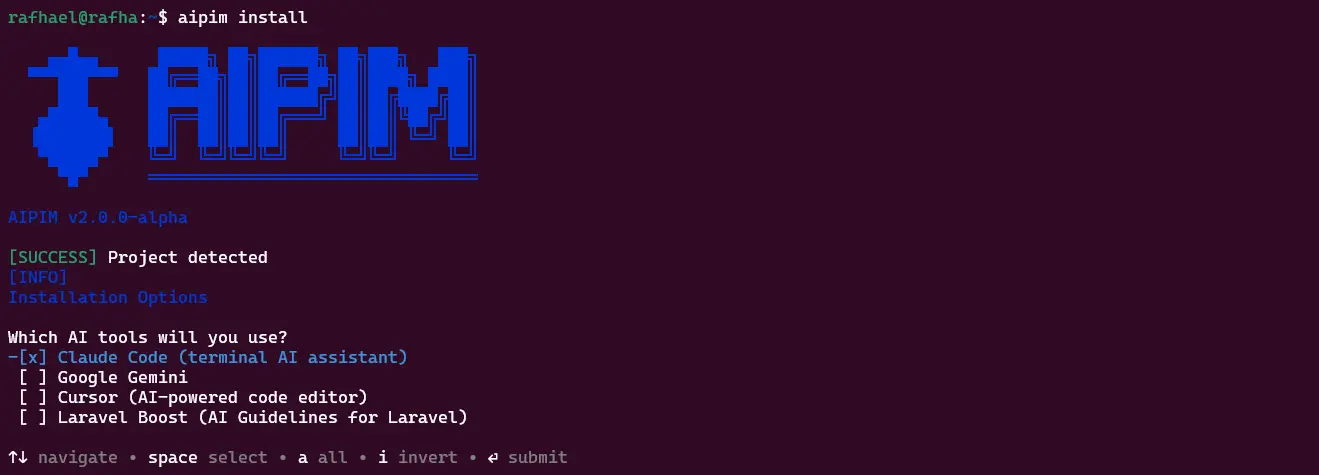
With AIPIM installed and initialized, I open the Claude chat and start talking to it about the project and task organization. It will already understand AIPIM through the connected MCP. Once I've dialed in what I want, I ask it to organize several short tasks so it doesn't have to worry about the full context right now—I want well-made, well-structured tasks. It's better to spend tokens now to save a lot later.
Claude will do its thing and create the tasks one by one. It might take a while; you can follow everything via the UI if you want. There are many more options, but that's for another post. Once it finishes the tasks, we're ready for the agent to start coding.
Starting the tmux and Claude Session
Create the session with tmux new -s claude_task. Inside this session, start the Claude process with claude --dangerously-skip-permissions. If you plan to leave it running while you live your life, these permissions are mandatory. The beauty of tmux is keeping the terminal session in the background; if the window closes by accident, the process keeps running. Here are some handy shortcuts:
- Exit the session without stopping the process (detach): Press
Ctrl + B, release, and then pressD. You'll return to your normal terminal. Claude will keep running in isolation. - Return to the session:
tmux attach -t claude_task - Kill the session:
tmux kill-session -t claude_task - Kill the script:
pkill -f scheduler.sh(or whatever name you used)
Detach from the session and run nohup ./scheduler.sh > scheduler.log 2>&1 & in your main terminal. The script will run in the background, logging all output.
You now have two processes running: Claude inside tmux, and the automation script under nohup. To see the automation script's decisions in real-time, use tail -f scheduler.log. To see Claude working and monitor token usage on screen, use tmux attach -t claude_task (never forget to detach properly, or you'll end the process).
Important note about --dangerously-skip-permissions
Be careful it doesn't wipe your entire Linux install. Just kidding—mostly. Running it this way is what I see most in my bubble. You don't want to sit around approving trivial stuff when all your tasks are already defined and well organized. But, for whatever reason, the agent can (rarely) fire off a wrong rm or push. Yes, that's possible.
"So why on earth do experienced devs run it like this anyway?" There are ways to mitigate the problem. Never, ever, under any circumstances, run an autonomous agent (or any agent) on main; use a throwaway branch or git worktree—worst case, you lose the worktree, not the project. And obviously, don't use production tokens in local projects.
If you want to be more paranoid (I get you) and put on the tinfoil hat, isolate your project in a container, with no sudo access and no reach into ~/.ssh, production keys, or other projects' .env files. Then you'll be 100% at ease.

The Final Script
Copy and paste is so much better! I get you. The final script was designed to run every 30 seconds, checking the time and tokens in independent passes. Adjust the parameters and test it out yourself.
It's important to point out that the script continues running even after the tasks are completed. You, as a human user, will need to manually close everything afterward. In a future version, I might consider a way to mitigate this, but it hasn't bothered me until now.
#!/bin/bash
SESSION="claude_task"
MAX_TOKENS=300000
PROMPT_CLOSE="end the session, update the memory, AIPIM MCP, CLAUDE.md (if necessary), and create a \`.project/last-session.md\` file with the prompt for the next agent"PROMPT_RESUME="read the prompt in \`.project/last-session.md\` and continue the work from where you left off. Always update the memory, AIPIM MCP, and CLAUDE.md between tasks to maintain project consistency"
CALLBACKS=(    "2026-06-11 17:05:00"    "2026-06-12 17:05:00"    "2026-06-13 17:05:00")
declare -a CALLBACKS_EPOCHfor target in "${CALLBACKS[@]}"; do    CALLBACKS_EPOCH+=($(date -d "$target" +%s))done
NEXT_CALLBACK_IDX=0
echo "[*] Starting Claude Code automation in tmux session: $SESSION"echo "[*] Monitoring token limit: $MAX_TOKENS"
while true; do    CURRENT_EPOCH=$(date +%s)
    if [ $NEXT_CALLBACK_IDX -lt ${#CALLBACKS_EPOCH[@]} ]; then        TARGET_EPOCH=${CALLBACKS_EPOCH[$NEXT_CALLBACK_IDX]}
        if [ $CURRENT_EPOCH -ge $TARGET_EPOCH ]; then            echo "[$(date '+%Y-%m-%d %H:%M:%S')] Time reached! Injecting 'continue'..."            tmux send-keys -t "$SESSION" "continue" C-m            ((NEXT_CALLBACK_IDX++))        fi    fi
    CURRENT_TOKENS=$(tmux capture-pane -t "$SESSION" -p | grep -oE '[0-9]+ tokens' | tail -n 1 | awk '{print $1}')
    if [[ "$CURRENT_TOKENS" =~ ^[0-9]+$ ]] && [ "$CURRENT_TOKENS" -ge "$MAX_TOKENS" ]; then        echo "[$(date '+%H:%M:%S')] Limit of $MAX_TOKENS tokens reached (Current: $CURRENT_TOKENS)."        echo "Injecting shutdown/context prompt (AIPIM)..."
        tmux send-keys -t "$SESSION" "$PROMPT_CLOSE" C-m
        echo "Waiting 20 minutes..."        sleep 1200
        echo "[$(date '+%H:%M:%S')] Injecting resumption prompt..."        tmux send-keys -t "$SESSION" "$PROMPT_RESUME" C-m
        sleep 600    fi
    sleep 30done
Curious and totally irrelevant info if you made it this far (thanks for that): this text was entirely written by a human, even though it's focused on AI.